Overview
This article explains how to send files to our team using a Smash upload link.
You may receive this link by email from one of our collaborators. The link allows you to securely upload files and transmit them directly to our team.
This process does not require any technical knowledge or a Smash account.
Step-by-Step Instructions
1. Open the link received by email
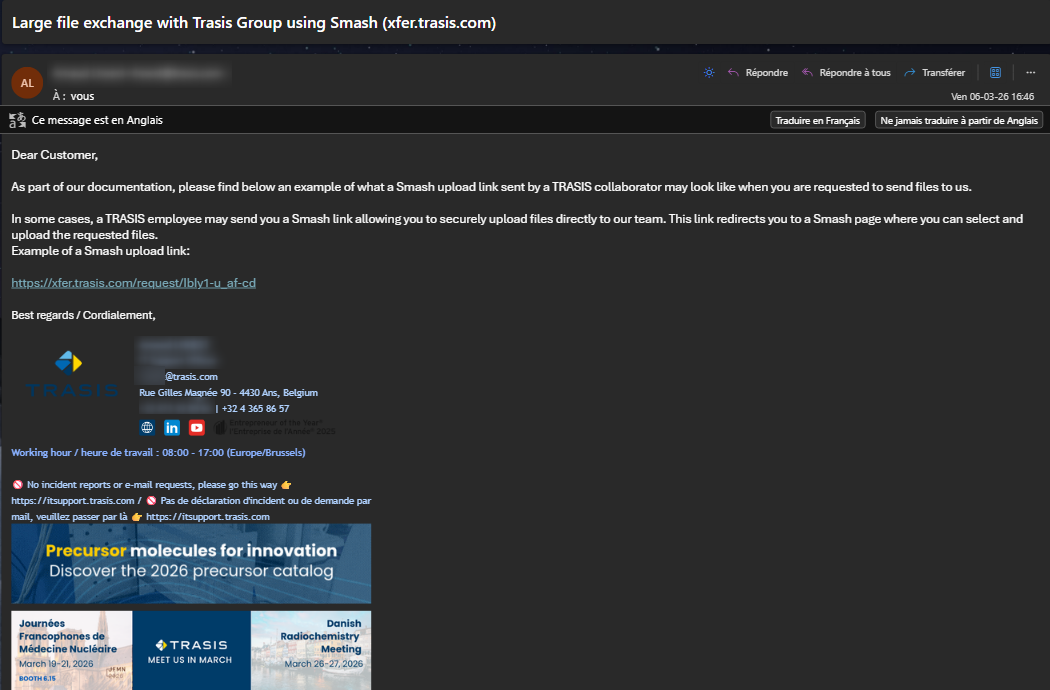
Open the email sent by our team.
Inside the message, you will find a Smash upload link similar to the example below:
https://xfer.trasis.com/request/xxxxxxxx
Click the link to open the secure upload page in your web browser.
2. Add the files you want to send
Once the page opens, you will see the file upload area.
You can add your files in two ways:
Click the Add files button and select files from your computer

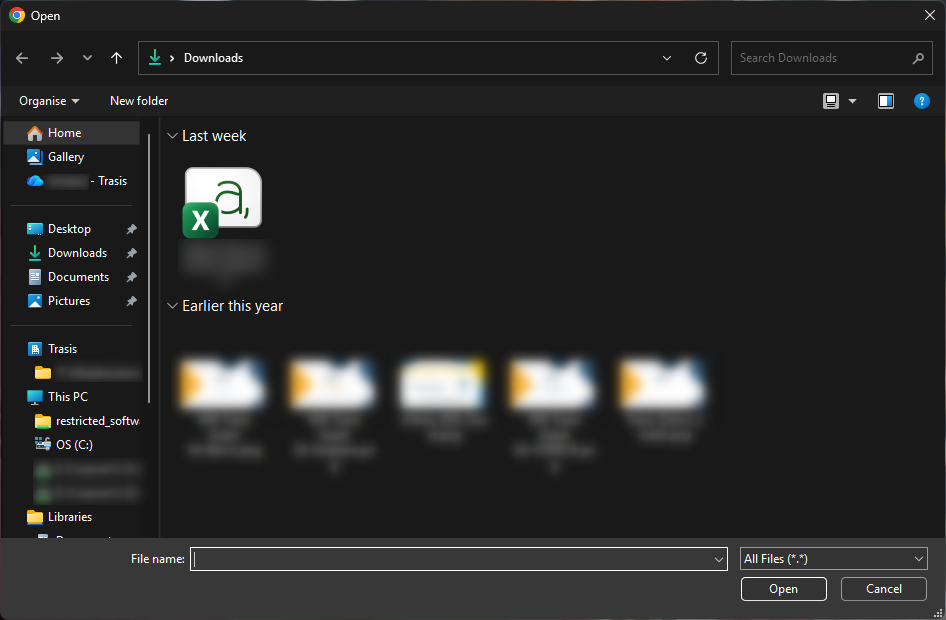
Drag and drop your files directly into the upload area
The selected files will appear in the list of files to be sent.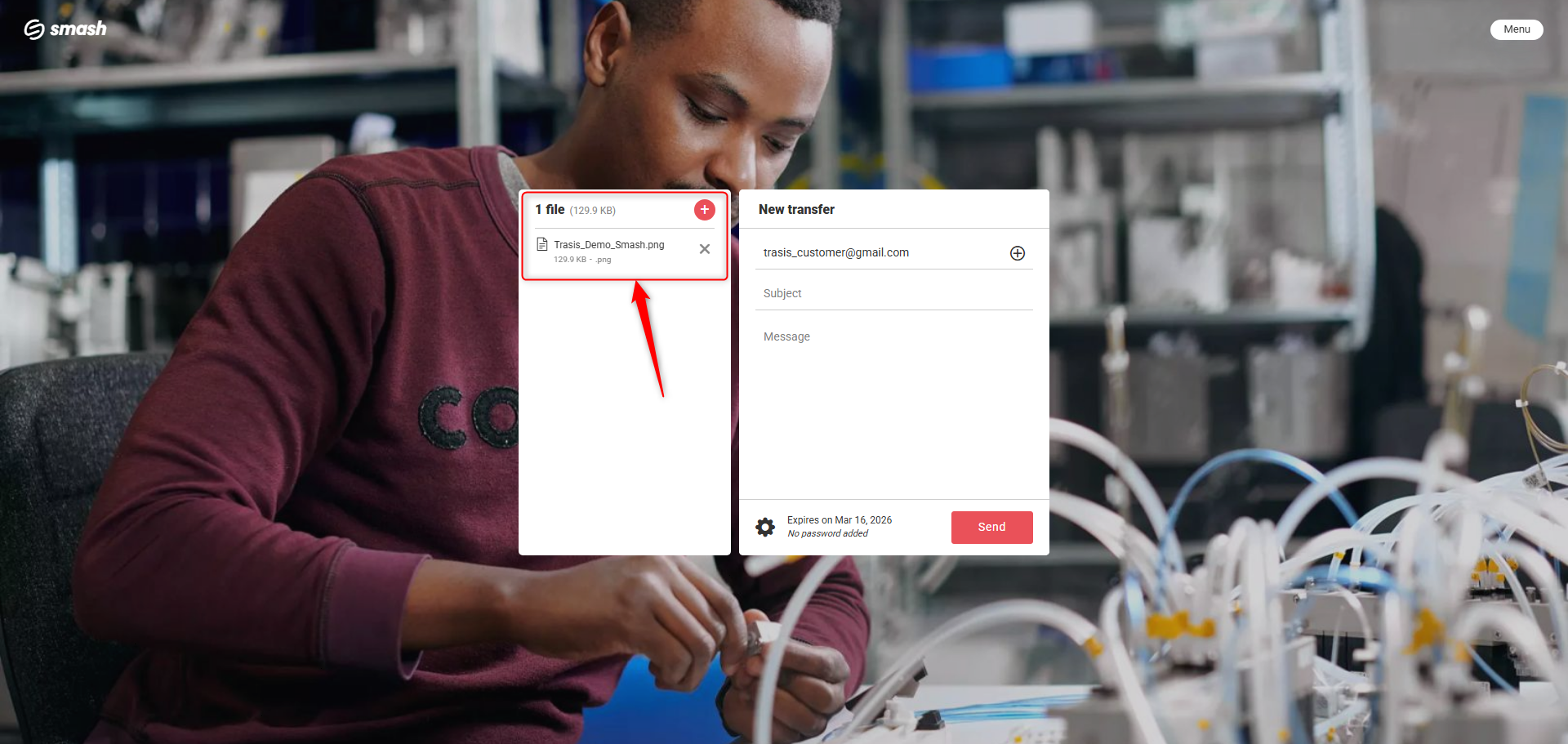
3. Write a message or comment
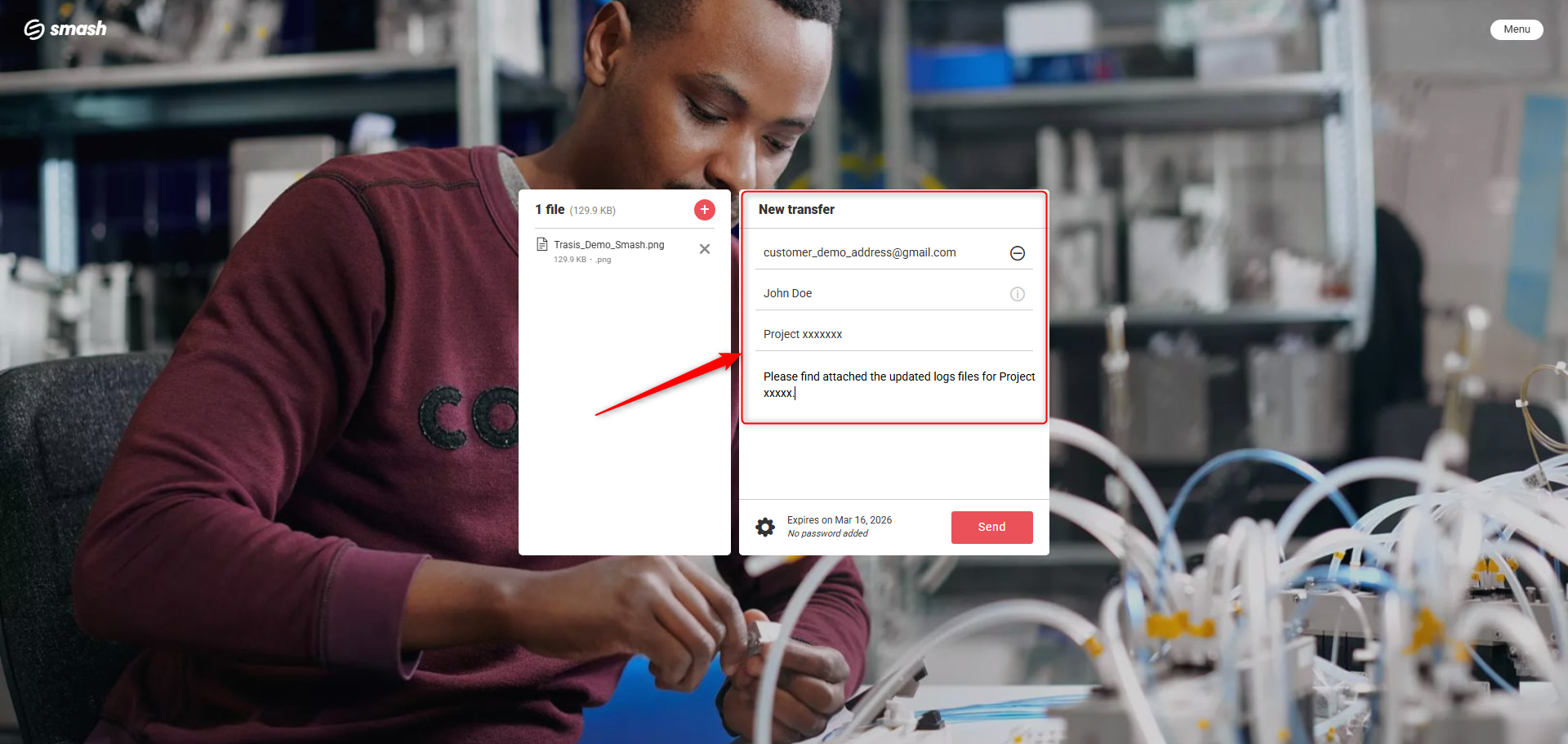
You can include a message to provide context about the files.
For example, you may include:
Your Email address
A project name
A reference number or order number
A short description of the documents
Example:
“Please find attached the updated logs files for Project xxxxx.”
5. Send the files
Before sending, verify the following:
The correct files are attached
The email address is correct
Your message is complete
Click the Send button to start the upload.
A confirmation code will be sent to your Email address
Refere this code on the smash web page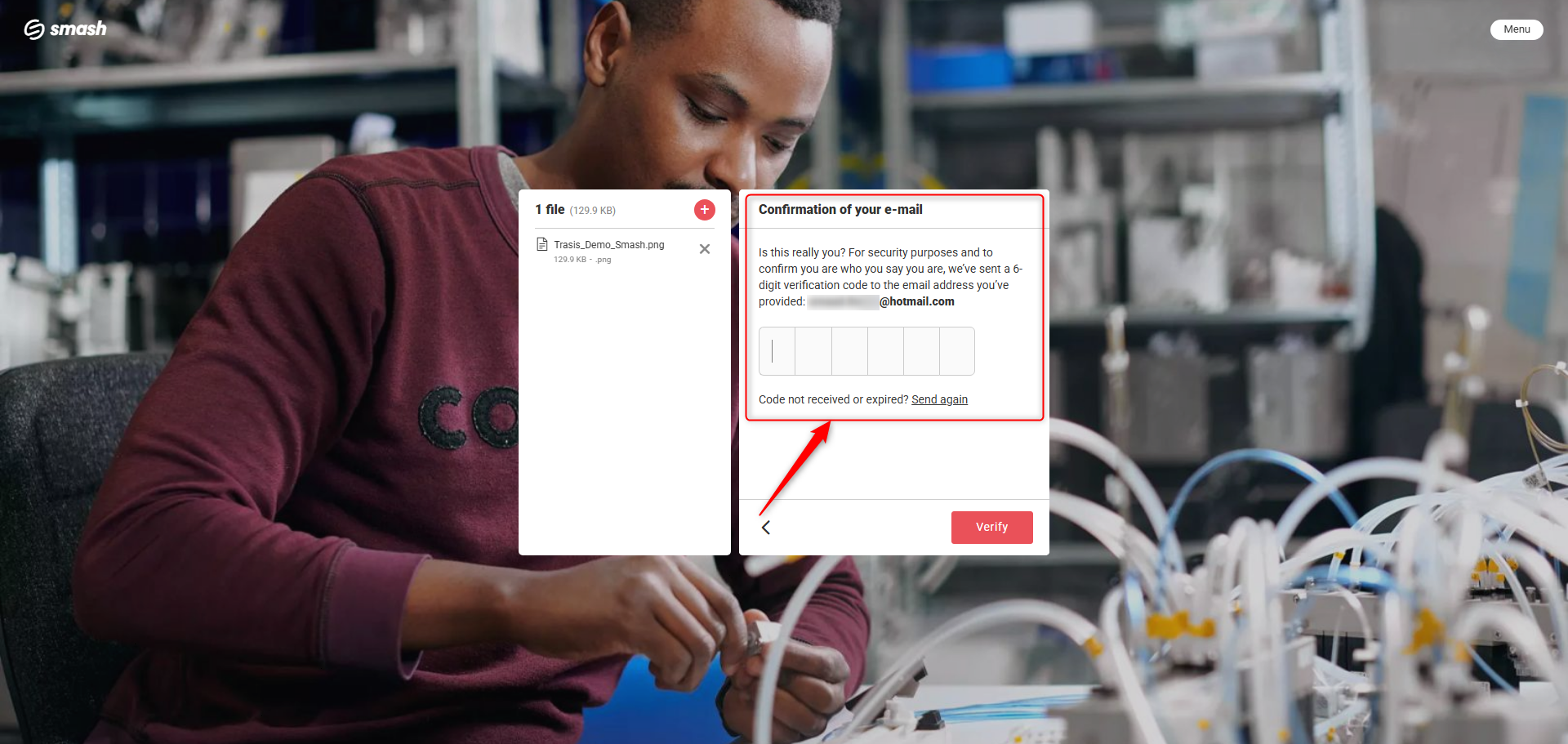
The files will then be securely transmitted to our team.
6. Confirm the upload
Once the upload is completed, a confirmation message will appear on the screen.
In some cases, you may also receive a confirmation email.
This confirms that the files have been successfully transmitted to our team.
The transfert will expire 7 days after it is successfully transmitted.

Tips and Notes
Make sure you select the correct files before sending them.
Large files may take longer to upload depending on your internet connection.
Do not close the browser window while the upload is in progress.
If you need to send many files, you may compress them into a ZIP file before uploading.
If the upload fails, refresh the page and try again with a stable internet connection.
Frequently Asked Questions
Do I need a Smash account to send files?
No. The upload link allows you to send files without creating an account.
What types of files can I send?
Most common business file formats are supported, such as:
PDF
Word documents
Excel files
Images
ZIP archives
If you are unsure whether a file is supported, contact the person who sent you the link.
What should I do if the upload fails?
Check your internet connection and try again.
If the issue continues, contact the person who provided the Smash link.
How do I know if the files were sent successfully?
A confirmation message will appear once the upload is complete. In some cases, you may also receive a confirmation email.
Was this article helpful?
That’s Great!
Thank you for your feedback
Sorry! We couldn't be helpful
Thank you for your feedback
Feedback sent
We appreciate your effort and will try to fix the article